By clicking on ‘Show assessment instructions’, you can directly access the instructions for the relevant faculty or degree programme at The examination and grading of master’s and licentiate theses.
Assessment of thesis areas
Next, assess the thesis areas numerically and, if necessary, in writing.
The number of areas assessed varies by faculty. Some faculties appoint one of the thesis examiners as the coordinating examiner. Information on the coordinating thesis examiner is available under the ‘Thesis information’ tab. The coordinating thesis examiner assesses the student’s performance in the assessment area of ‘Work during the thesis process'. This area of assessment is visible to the other examiners as grey/inactive.
Check the assessment instructions of the relevant faculty or degree programme by clicking on ‘Show assessment instructions’ in the top right corner.
Numerical assessment
You must enter a numerical assessment of each area on a scale of 0 to 5. The other examiners’ numerical assessments are displayed under ‘Other examiners’.
If the grade for any area is 0, the thesis cannot usually be approved.
Written assessment
The written assessment of thesis areas is voluntary. The examiners use the same ‘Written assessment’ field. A written assessment can be added by clicking on ‘Add written assessment’.
Please note that written assessments are always displayed to the student alongside the grade assigned for the area. Save only text intended for the student in this field.
If you edit another examiner’s written assessments of thesis areas and then approve your assessment, the system will ask the other examiner to accept your changes. Further information is available at Changes to written assessments.
Enter your written assessment in the field appearing on the screen, and click on ‘Save’.
NB! If another examiner has already assessed the thesis areas and you agree with them, you can confirm the assessment by selecting ‘Confirm the submitted assessment’. This will lock the numerical and written assessments. You can return to enter your own assessments by deselecting the above.
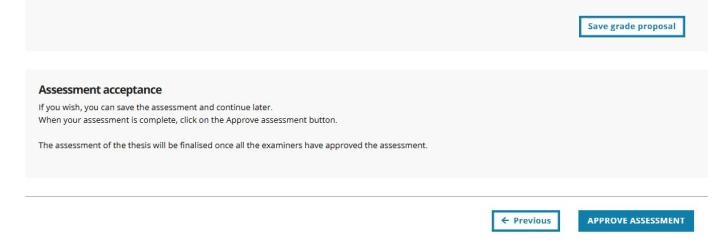
Once you have entered your numerical and written assessments of all thesis areas, you can proceed to enter a grade proposal and statement by clicking on the relevant button at the bottom of the page.