Sisu instructions: Recording the grades of completed studies
Belongs to themes:
Please also read the general principles and further information concerning the assessment process of completed credits on page Registering completed credits.
If you have been defined in Sisu as the teacher of an ‘implementation’ (e.g., a lecture-based course or a closed-book examination), you can record grades for it. If you have been defined as the coordinating teacher, you can also confirm the recorded grades.
Immediately after being confirmed, the credits will be displayed to students as partially completed. The information will automatically change overnight so that the credits appear as fully completed. When students have completed all the credits required for a course, the credits will not appear as fully completed in the study plan until the day after the assessments have been confirmed.
You can also see the instructions as recordings in Unitube: Recording the grades of completed studies, quick guide or the more comprehensive version Recording the grades of completed studies.
You can find the tab for assessing implementations (e.g., lecture-based courses and examinations) under My teaching in Sisu. This tab lists all the implementations for which you have been defined as the teacher. By clicking on the title of a course or examination, you can access its information as well as the Assessment tab under which the assessment is to be recorded.
You can record grades one student at a time or record the same grade for a group of students in one go by using the Bulk edit information tab. Alternatively, you can import assessments from a CSV file (Excel) or the Moodle learning environment.
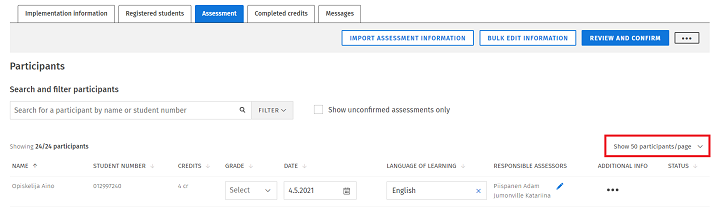
Under the Assessment tab, you can see a list of up to 100 students shown on one page. You can change the maximum number of students shown on the list from the drop-down menu on the right side of the page.

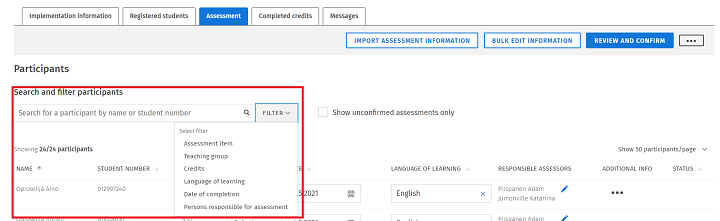
To filter the participants included in the list, click on Search and filter participants in the upper part of the page. You can filter participants by assessment item, study group, credits, language of learning, date of completion and persons responsible for assessment. The criteria you selected for filtering will remain in place if you move to bulk editing information or confirming assessments.

You can also search for a particular student by name and student number. By selecting Show unconfirmed assessments only, you can exclude from your search students whose assessments have already been confirmed.
You can also organise the list of participants by clicking on the list headings by name, student number, credits, grade, date, language of learning and status.
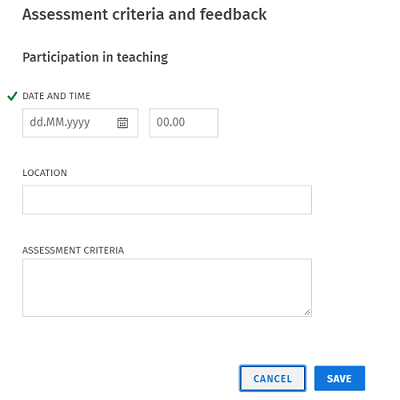
By clicking on the three dots next to the Review and confirm feature on the Assessment tab, you can open a menu that includes the option Assessment criteria and feedback.

On the page that appears on the screen, record the assessment criteria unless they are included in the course details. On this page, you can also record the date, time and location of a feedback session, if any. Record the criteria unless they are included in the course details. You can also record assessment criteria and feedback information after you have confirmed assessments. Students can see the information under their completed studies.

You can use the Bulk edit information feature to record the same grade for a large number of students in one go. When using this feature, you can only see the students for whom a pass grade has not yet been confirmed. You can also view confirmed fail grades which you can replace by recording a new, pass grade. Please note that changes made using the Bulk edit information feature will replace entries made for the selected students whose assessments have not yet been confirmed.

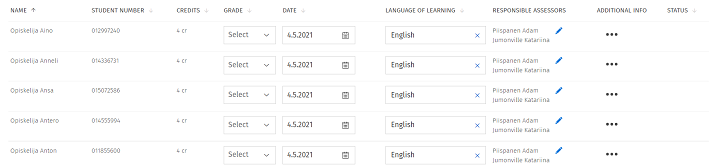
The Assessment tab shows a list of the students whose registration for a course or examination has been approved and confirmed. You can record a grade and other information by clicking on the relevant field. You can also click on the first grade row and then move from one field and row to the next in the participant list using the tab key or the Shift+arrow combination.
Any information you record on the Assessment tab is continuously saved, so you can proceed in the order of your choice. Students cannot see the information until the day after the assessments have been confirmed.

If you notice an error in the assessment scale, number of credits or other information, or if a language is missing from the language of learning menu, please contact the University’s assessment support services (assessment@helsinki.fi) before confirming the assessments.

When you have successfully confirmed the assessments, they will be recorded for the relevant students and the credits will be immediately displayed to them as partially completed. When students have completed all the credits required for a course, the credits will not appear as fully completed in the study plan until the day after the assessments have been confirmed.
A wreath icon will be shown under the Status column on the list of students if the student’s assessment has been confirmed. A downward arrow icon will be displayed for students who have received a fail grade. A new, pass grade can be recorded to replace the fail grade.
Further information on resitting courses and examinations can be found in the general instructions for recording grades.
A fail grade on a course (implementation in Sisu) can be raised by reselecting the student on the Assessment tab and changing the grade (and any other information, such as the date of completion). You can identify students whose studies can be re-assessed by the arrow at the end of the row in the list of participants. The amended grade is verified in the usual manner with the Review and confirm feature.
A passing grade is usually raised through what is known as a separate implementation. In such cases, the student registers separately in Sisu, for example, in a general examination session or a re-take exam, which is assessed as a separate implementation. If you are unable to find a re-take implementation in Sisu, please contact your degree programme's planner. Contact information for planning teams can be found on the Instructions for teaching page Teaching programme.
More information on raising of completed credits can be found on the Instructions for teaching page Assessment and grading in different systems.
If you notice an error in the grading of an already confirmed evaluation or it needs to be rectified for any other reason, please contact the Assessment support services (assessment@helsinki.fi).
Credits can be recorded on the basis of completed components (parts of a completion method) either automatically or after the coordinating teacher or an administrator has approved it. Credits can be recorded once the student has completed all the compulsory components that they have selected. Further information on course components can be found on this page under What do 'implementation', 'completion method' and 'assessment item' mean?
You must be defined as the coordinating teacher of the course to be able to record credits once the student has completed the necessary components. Credits are recorded on the course maintenance page on the Assessment tab.


The assessment of a large number of students is easier if you import evaluation data using a CSV file (i.e., an Excel file). The Excel-based Sisu converter (SIMU) helps you compile student information, assess completed studies and import assessment data into Sisu. After importing assessment data into Sisu using SIMU, you only need to confirm the data in Sisu. SIMU requires a list of student numbers for the assessment data to be connected to the right students. It is possible to obtain a list of student numbers, including names, from Sisu, Moodle or Examinarium, for instance.
New: If you've ordered the course participant list through the Course Pages, you can use the prefilled SIMU-sheet in the second tab to save and import the grades to Sisu.
If you don't have prefilled SIMU-sheet from the Course Pages, first download the Sisu converter down below:
Download the Sisu converter SIMU here (.xlsm)
NB. If you are using the latest version of Excel, you need to first enable the use of macros from the folder where you save the SIMU file:
NB. The macro functions in the Sisu converter require Windows and Microsoft Excel in order to work. If you do not have access to these, you can still use SIMU by logging into the university's virtual Windows 10 desktop from https://vdi.helsinki.fi. Further instructions can be found from Helpdesk.
If you have ordered the prefilled sheet from the Course Pages, you can jump to section 4.
You can also transfer grades directly from Examinarium to Sisu for which instructions can be found on the page Examinarium - user instructions. You should import an Excel file if the grade obtained from Examinarium is not the final grade.
You have probably not been added as the teacher responsible for the course or examination (‘implementation’ in Sisu). Please contact the planning officer responsible for the degree programme and ask them to add this information. You can find the necessary contact details on the page containing instructions for the degree programme.
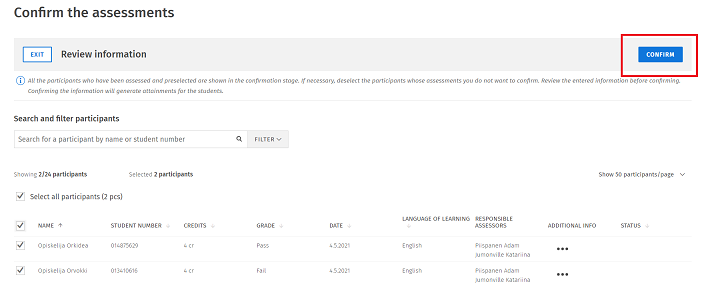
Click on ‘Review and confirm’ at the top of the ‘Assessment’ tab and confirm the assessments. You can find more detailed instructions in the chapter Confirming the assessments.
If the information on the responsible assessor is missing from the student-specific rows, it prevents the confirmation of assessments. Information on the assessor may have been inadvertently removed from the ‘Assessment’ tab. Check this information and add at least one responsible assessor. You can add this information for several participants all at once using the bulk edit feature.
The student has either not registered for the course or examination, or the student’s registration has not been confirmed. Check that the student can be found on the ‘Registered students’ tab. You can use the menus above the list of registered students to access rejected registrations or registered students who did not meet the registration criteria. Students can be registered for a course or an examination by the Student Services staff responsible for the degree programme in question, or the students themselves can register if registration is still open. You can check whether registration is open by clicking on the ‘Registrations’ tab of the relevant course or examination.
Compulsory information on the students to be assessed is missing, which is why the students do not appear on the list of students to be confirmed. Make sure that the rows for all participants to be assessed include the scope in credits, the grade, the attainment date, the language of learning and the responsible assessor.
When you have confirmed the assessments, they are immediately visible to students as partially completed. During the following night, the course assessments will automatically change into a full completion. Only if a course consists of several components, the assessments must be manually compiled by an administrator in Sisu.
Completed studies are not necessarily displayed to students the day after the grades have been recorded if they have not added the course to their plan, the course information does not include a responsible teacher or the method of completion is unclear. In such cases, completed studies appear to students as partially completed courses. You can ask the students to contact Student Services, where the staff can change the course from partially to fully completed.
You can find a list of the most common solutions on the Exporting grades from the online learning environment Moodle to Sisu -page.
An implementation can be a course, an examination, a traineeship, an essay or any other learning activity for which students register and which they complete to demonstrate their skills.
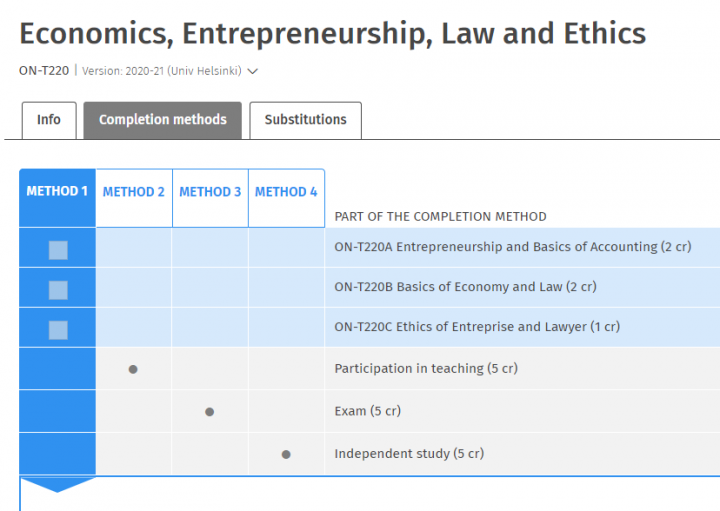
In Sisu, courses (e.g., HY110) offer several completion methods available to students, who decide the format in which they wish to study the course content. For example, completion method alternatives may include 1) attending teaching, 2) an examination and 3) an essay.
A completion method may consist of several parts (identical to course components and assessment items), in which case students must complete each (compulsory) part to earn the credits. In other words, parts of completion methods are similar to course components. For example, the completion method of attending teaching may consist of the separate parts of lecture-based teaching and exercises.

Parts of completion methods are necessary if a teacher wishes to create separate implementations (e.g., exercises and lectures) for course components in Sisu and to assess them separately in Sisu. For information on whether a course has several parts in its completion methods, please see the course brochure. Completion method 1 below includes several parts, whereas completion methods 2–4 include only one part.
An implementation can be connected to several parts of completion methods. For example, an implementation entitled Exercise Group can be connected to the completion method of both the course HY-110 Truth, Bildung and Freedom and the course HY-120 Best Place to Study. Consequently, when registering for the Exercise Group, students can choose whether to complete the course HY-110 or HY-120. This means that when you are assessing completed studies, they are appropriately connected on the basis of each student’s choices.
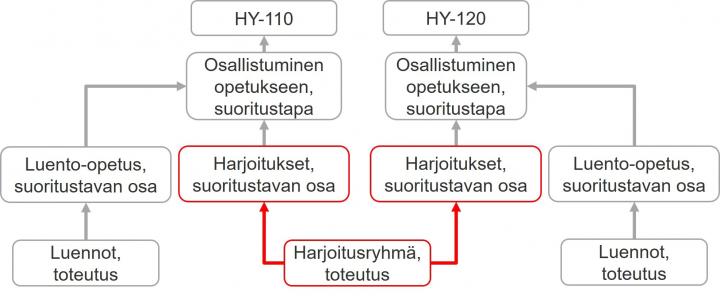
If an implementation has been connected to several courses, you can see it
If an implementation has been connected to several parts of a course completion method, you can see it
For example, students can complete in an examination session the resit examination of a lecture-based course (part of a completion method) and a closed-book examination (part of a completion method).
If you have questions about assessment or the use of various assessment systems, you can contact the University’s assessment support services at assessment@helsinki.fi.
You can find compiled Sisu instructions for teachers on page Sisu instructions for teachers.
Frequently asked questions about Sisu
You can find compiled Sisu instructions for students on page Sisu instructions for students.